
The Case for Vector PDF: Print Once, Forever Sharp
Raster PDFs blur at A1. Vector PDFs don’t. The technical explanation — what vector actually means, why DPI doesn’t apply, and how to tell the difference before you print.
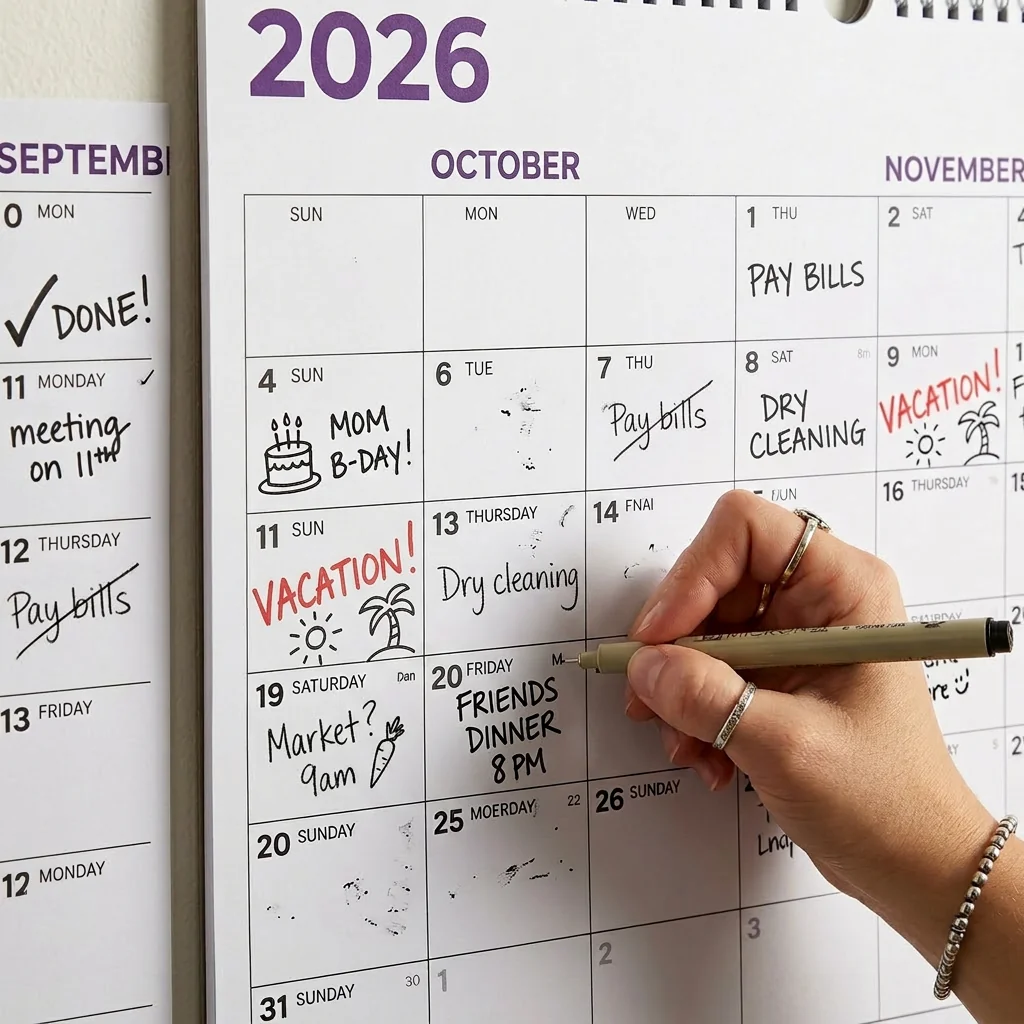
The blurry poster problem
You find a free yearly calendar online, download the PDF, and send it to a print shop asking for an A1 poster. The file comes back fuzzy. Text is soft, grid lines have a slight halo, and the whole thing looks like a screenshot rather than a printed document. The print shop did nothing wrong. The file was always going to look like that.
The problem is not the printer, the paper, or the ink. The problem is that the original file was built as a raster image — a fixed grid of pixels designed for a specific size. Scaling it up to A1 just made each pixel bigger. You ended up printing the pixels.
This is the single most common failure mode for printable wall calendars. And it is entirely avoidable if the file is built as a true vector PDF from the start. If you’re comparing calendar options before printing, our guide to plain printable calendars in 2027 covers the free vs. paid trade-offs.
What raster actually means
A raster image is a rectangular grid of coloured squares — pixels. A photograph is raster. A screenshot is raster. When you create a calendar in a tool like Canva or Google Slides and export it as a PDF, the output is almost always a raster image embedded inside a PDF wrapper. The PDF container is just packaging; the content inside is still a flat grid of pixels.
Resolution is the defining constraint of raster. An image has a fixed number of pixels, no more. You can display it on a screen at any apparent size by telling the software how many pixels to show per inch (DPI — dots per inch). But the total pixel count is fixed. Stretch it beyond the point where each pixel maps to roughly one printer dot and the result goes soft.
A standard web export looks sharp on screen. At print quality (300 DPI), a modest raster file reproduces acceptably at A4 — approximately 210 × 297 mm. Print it at A1 (594 × 841 mm) and you are asking the printer to stretch the same pixel data across roughly eight times the area. The pixels get large enough to see.

What vector actually means
A vector file does not store pixels. It stores instructions: draw a line from point A to point B with this stroke weight; fill this closed path with this colour; place this text at this position using this typeface at this size. When the file is rendered — displayed on screen or sent to a printer — those instructions are executed at whatever resolution the output device supports.
A line in a vector file is a mathematical path. It has no inherent size. Print it at A4 and the renderer calculates where each dot goes at 300 DPI. Print the same file at A0 and it recalculates at A0 dimensions, still at 300 DPI. The output is always as sharp as the printer can produce, because the file itself contains no resolution limit.
This is why DPI is essentially irrelevant for vector files. DPI is a property of the output device, not the source file. The vector instructions are resolution-independent by definition. You do not need to choose between a high-resolution export and a small file size — the same file handles any output size without modification.
SVG, EPS, and why PDF wins for end users
Several formats can carry vector content. SVG (Scalable Vector Graphics) is XML-based and native to the web — browsers render it directly, and it scales perfectly on screen. EPS (Encapsulated PostScript) is the older format still used in professional print workflows. AI files (Adobe Illustrator’s native format) are vector. All of these can be mathematically precise, resolution-independent, and scalable.
PDF wins for end users for one practical reason: it opens everywhere. Every operating system ships with a PDF viewer. Every print shop accepts PDF. You do not need Illustrator, Inkscape, or any design tool. You just open the file and print. A vector PDF combines the mathematical precision of a format like SVG with the universal compatibility of a document format. Adobe’s PDF specification is built on the PostScript imaging model, which is inherently vector.
The catch is that “PDF” does not automatically mean “vector.” A PDF is a container. The content inside can be vector paths and real text, or it can be a rasterised image. Two files with .pdf extensions can behave completely differently at large print sizes. What matters is what’s inside — and our explainer on what is a vector PDF wall calendar covers exactly how to tell them apart.
Zoom in and see the difference
The fastest way to check any PDF is to open it in a viewer and zoom to 800% or more. In a vector PDF, text stays sharp — the curves of each letter remain smooth at any magnification. Grid lines stay crisp. The image looks identical at 100% and at 3000%, because the renderer is recalculating the output at every zoom level.
In a raster PDF, zooming in reveals the pixel grid. Text characters soften and then break into visible squares. Fine lines develop a staircase edge. By 400% you can usually see individual pixels. By 800% on a thin-line calendar grid, the file shows its true structure: a photograph of a calendar rather than a mathematically defined one.
This is not a subtle difference at print sizes. The pixel structure that is barely visible on screen at 400% becomes the dominant visual feature when the same pixels are printed large enough to cover a wall. A line that looked acceptable in a thumbnail looks blurry and unprofessional at arm’s length.
Why free printable calendars are almost always raster
Most free printable calendars are built in presentation tools, design templates, or simple web apps. These tools are optimised for screen display or standard paper printing — Letter size in the US, A4 in Europe. When the creator exports the file, the tool rasterises the output at the target print size. The file is designed for one size at a fixed DPI, and nothing more.
There is no malice in this. The creator was solving their problem — a calendar that prints correctly on a home printer. They were not designing a file to be printed at A1 in a print shop next year. The format choice is appropriate for their use case. It just does not extend to large-format printing.
Producing a true vector PDF requires working in vector-native software — Illustrator, Affinity Designer, Inkscape, or similar — and exporting with vector content preserved. It requires layout decisions that work mathematically rather than visually at a fixed size. It is more work upfront, and it produces a file that is strictly more capable: usable at any size, any time, without re-exporting.
How to verify a PDF is vector — and what PlainPlan ships
Three quick checks. First, zoom to 800% in any PDF viewer: if lines and text stay sharp, the file is vector. Second, try selecting text with your cursor — in a vector PDF, text is real text that can be highlighted and copied; in a raster PDF, there is nothing to select. Third, check the file size: a well-structured vector calendar is typically under 2 MB even for a full year, because it stores paths and instructions rather than pixel data.
Every PlainPlan file passes all three checks. Text is real text. Lines are paths. The layout is mathematically defined. The same file prints at A4 on a home printer and at A0 in a professional print shop without any adjustment, re-export, or upscaling. For practical guidance on which paper size to choose, see our guide to printing a wall calendar at any size.
At $6.99, the value is not the paper or the ink — it is the format decision made at design time. A vector PDF is a one-time investment in a file that does not degrade, does not require updates for different print sizes, and does not send you back to a designer when you decide you want a bigger planner. And because the paper choice matters too, pairing a vector file with the right stock gets the best result at any format.

Frequently asked questions
No. A PDF is a container format — the content inside can be vector paths and real text, or it can be a rasterised image. A PDF exported from Canva or Google Slides is almost always raster. A PDF exported from Illustrator or Affinity Designer with vector content preserved is vector. The zoom test is the fastest way to check: zoom to 800% and see whether lines stay sharp or break into pixels.
No. DPI is a property of the output device (the printer), not the source file. A vector PDF stores mathematical instructions that are re-executed at whatever resolution the printer supports. There is no pixel count to run out of. DPI only matters for raster files, where the total pixel data is fixed at creation time.
A well-structured vector PDF for a full-year wall planner is typically under 2 MB, sometimes under 500 KB. Raster PDFs are often much larger — 5–20 MB — because they contain a compressed pixel grid rather than mathematical instructions. If a “vector” PDF is 15 MB, it likely contains embedded raster images.
Most home printers only handle A4 or Letter. To print at A0, A1, or A2 you need a large-format printer, which most professional copy shops and print services have. You send them the PDF file and specify the output size. Because the file is vector, no upscaling or re-export is needed — the print shop’s RIP (raster image processor) handles the rendering at the target size.
Sources
Your year. Your wall.
One file. Any wall. Always sharp.